V-Admin Magento Extension
Installation Instructions 1. Disable Compilation Log into the Magento Admin Panel and go to System, Tools, Compilation. Then, disable the compilation, this will let you run the compilation process again. 2. Install the V-Admin Extension, via Magento Connect First, get the extension key from magento connect Then, go to System, Magento Connect, Magento Connect Manager and use your admin account to login again. Once you are logged in, paste the extension key in the field named "Paste extension key to install", then click Install. After installation, click the Proceed button and the V-Admin extension will be installed automatically. 3. Clear Cache Go to System, Cache Management. Then clear the stored cache. 4. Re-login After clearing the cache, logout and then log back into the Magento Admin Panel. After this step V-Admin will be successfully installed and ready for configuration.

 ElegantWhite Theme (for Inout Search Engine)Sponsored
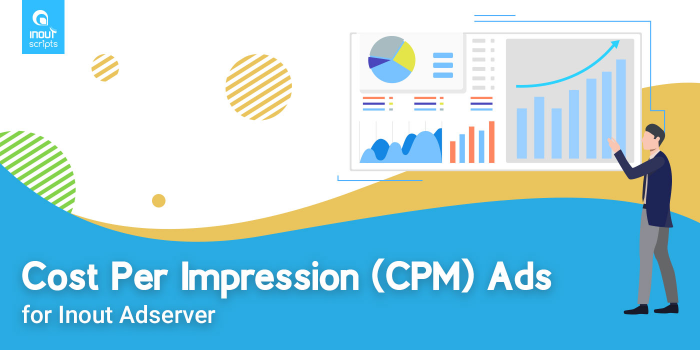 Cost Per Impression (CPM) Ads (for Inout Adserver)Sponsored
 Cost Per Interstitial (CPI) Ads (for Inout Adserver)Sponsored

Cost optimization by replacing IPv4 with IPv6 and configuring DNS for it
Plan and configure IPv6 addressing and DNS so you can reduce IPv4 usage and related costs.
Create CloudWatch Alarms and Automated Performance-Based Actions
Setting up CloudWatch alarms to monitor server performance and trigger automated actions based on customized conditions.
Help/Fix on AWS CloudFront (1 Hour)
One hour of help to configure or fix AWS CloudFront distributions.
Cloudflare Ongoing Management & Monitoring (Monthly)
Monthly Cloudflare management including policy changes, monitoring, tuning and issue response.